How to Download and Install USTAAD Typing Academy
USTAAD Typing Academy is available in two versions — a Web Version you can use directly in your browser, and a Desktop Version you can download and use completely offline. This guide covers both.
Option 1 — Use the Web Version (No Download Needed)
If you want to start practicing right away without installing anything, the web version is the fastest way to begin.
Simply open your browser and visit:
The web version works on any modern browser and any operating system. No account signup, no installation — just open and start typing.
The web version is ideal if you are on a shared computer, want to practice from multiple devices, or just want to try the platform before downloading the desktop app.
Option 2 — Download the Desktop Version
The desktop version gives you the full offline experience. Once installed and your typing courses are downloaded, you do not need an internet connection at all.
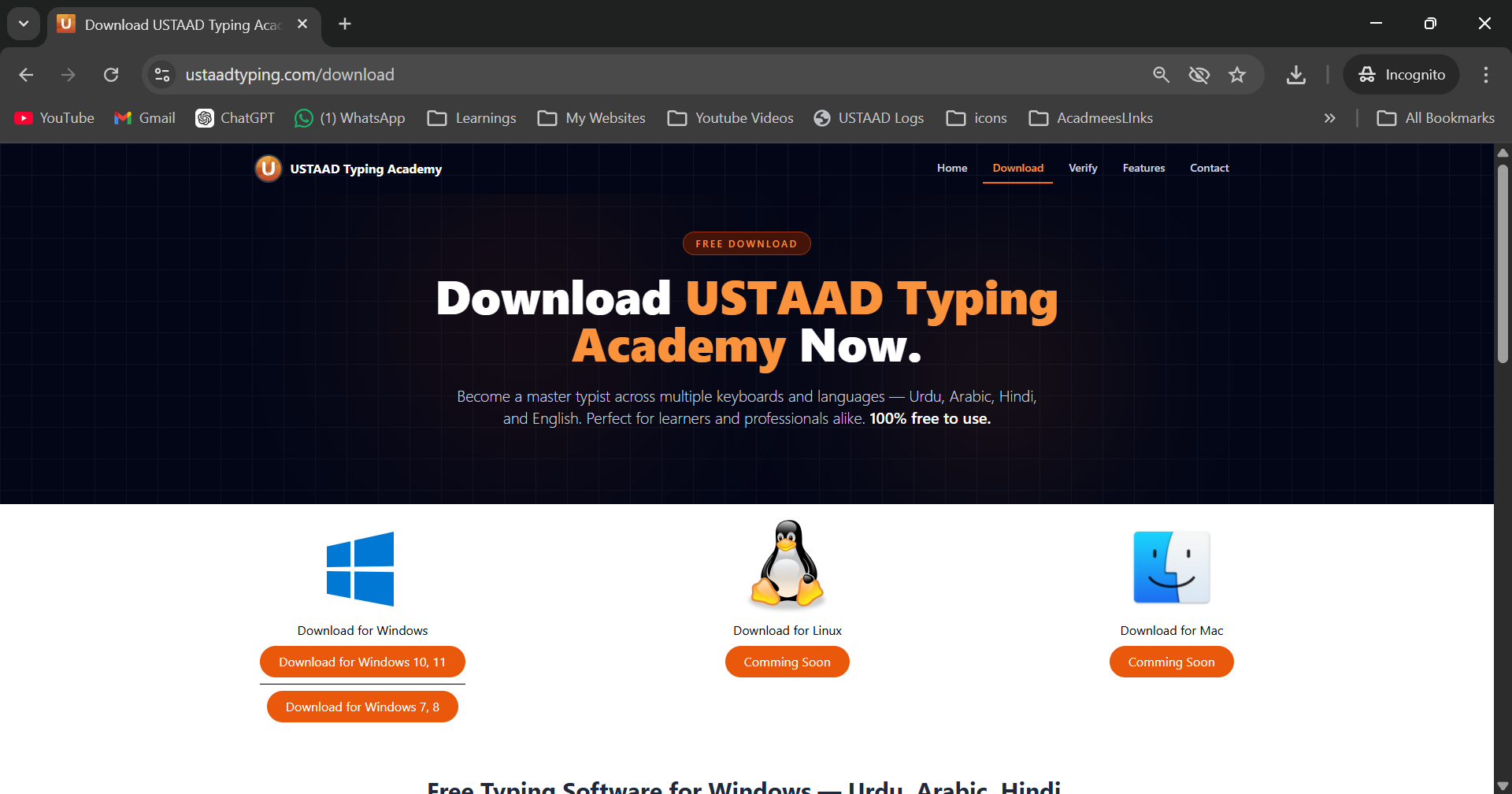
Step 1 — Go to the Download Page
Visit the official download page:
Step 2 — Choose the Right Version for Your Windows
USTAAD Typing Academy currently supports Windows only. Mac and Linux versions are planned for future release.
On the download page, you will see two Windows versions available:
| Version | Recommended For | Notes |
|---|---|---|
| Windows 7 / 8 | Users on older Windows systems | Also runs on Windows 10/11, but you will not receive platform update notifications |
| Windows 10 / 11 | Users on modern Windows systems | Recommended — includes update notifications and latest features |
The Windows 7/8 installer will technically run on Windows 10 and 11, but you will not receive update notifications or platform announcements. If you are on Windows 10 or 11, always download the Windows 10/11 version.
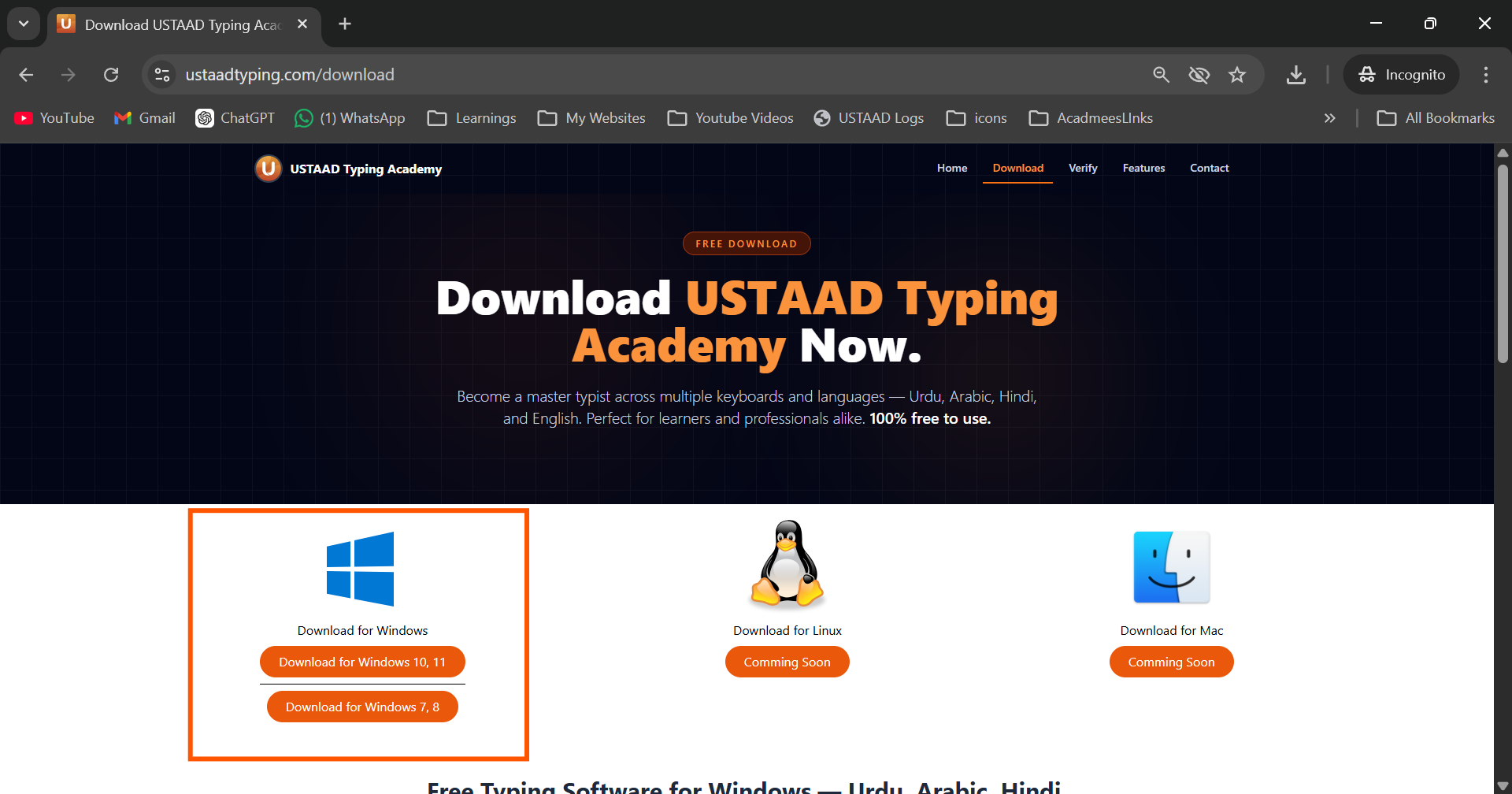
Step 3 — Download the Installer
Click the download button for your Windows version. The installer will download as a .zip file to your computer.
Wait for the download to complete before moving to the next step.
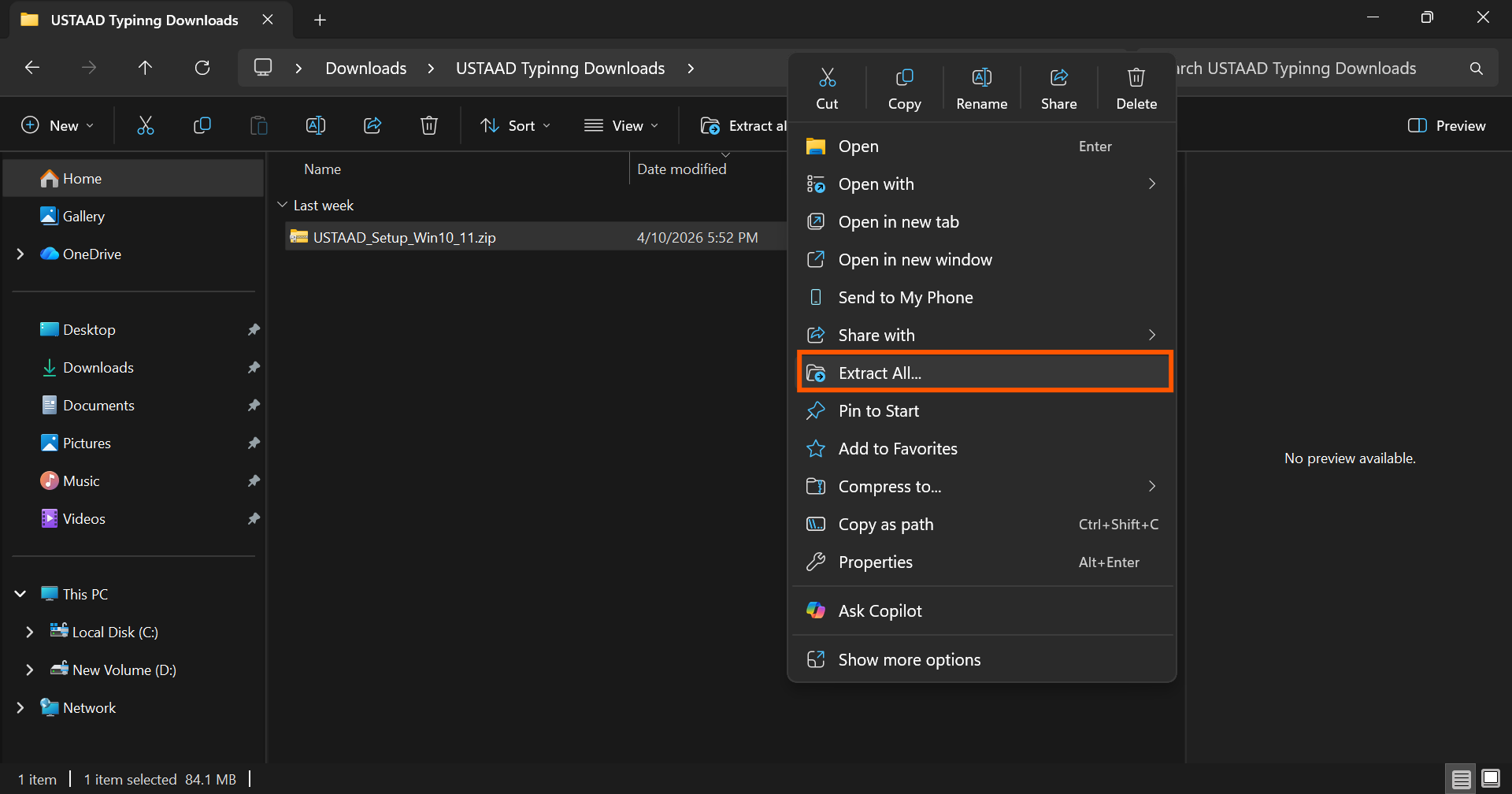
Step 4 — Extract the ZIP File
Once the download is complete:
- Locate the downloaded
.zipfile — usually in your Downloads folder - Right-click on the
.zipfile - Select Extract All (or use any tool like WinRAR or 7-Zip)
- Choose a folder to extract into and click Extract
Step 5 — Run the Installer
After extraction is complete:
- Open the extracted folder
- Find the
.exeinstaller file inside - Double-click the
.exefile to start the installation - Follow the on-screen setup steps — it installs just like any other Windows application
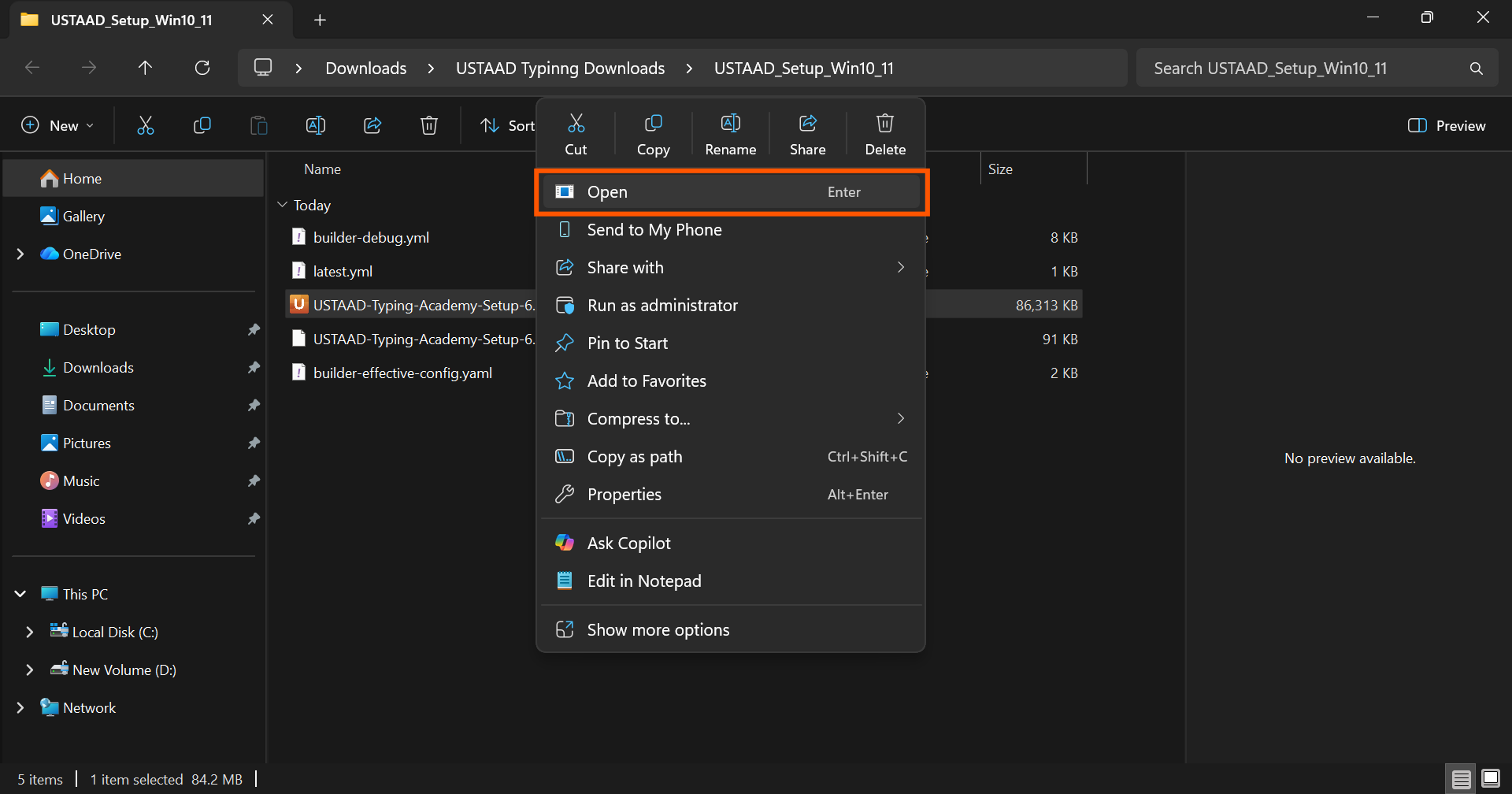
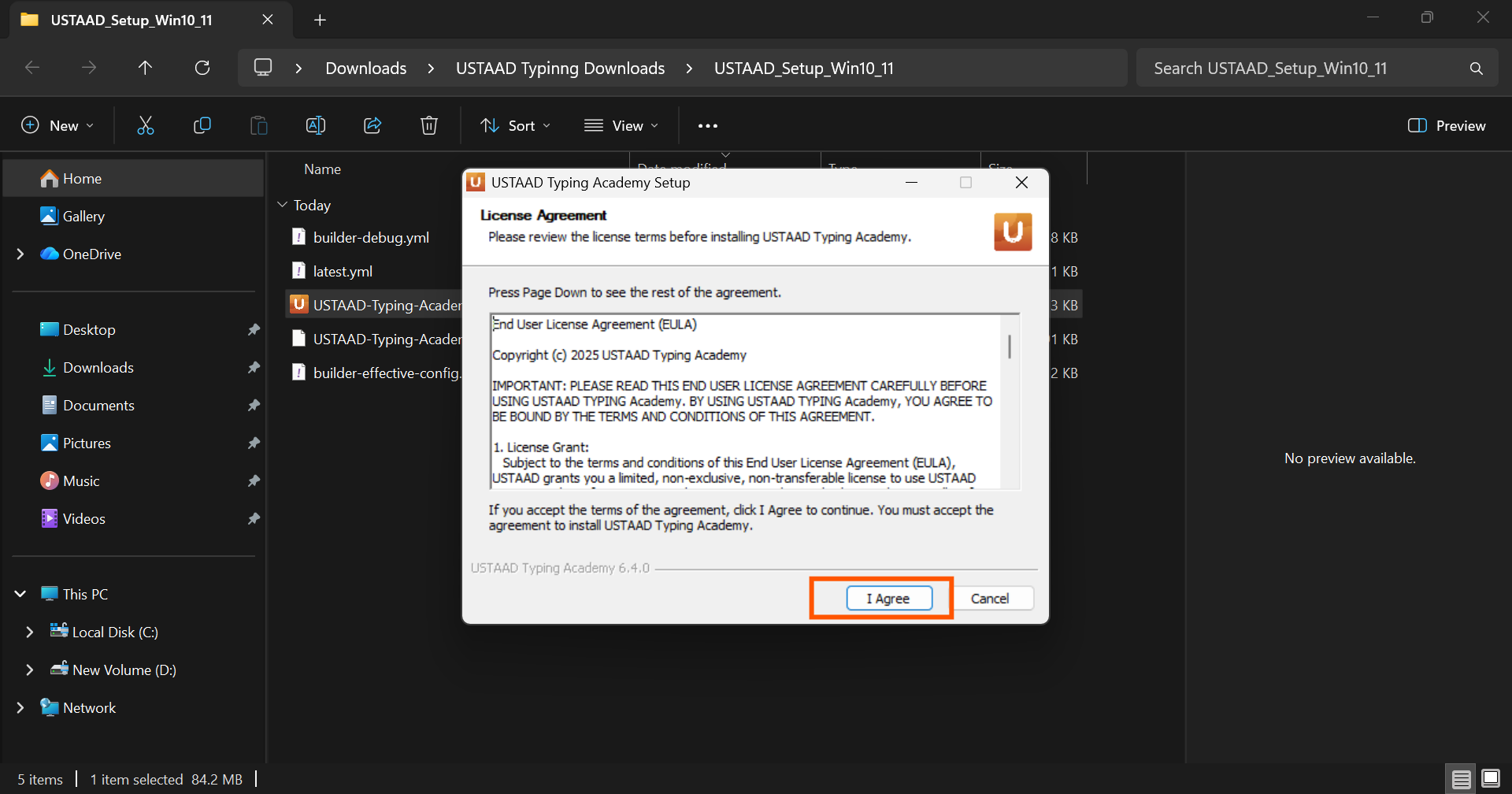
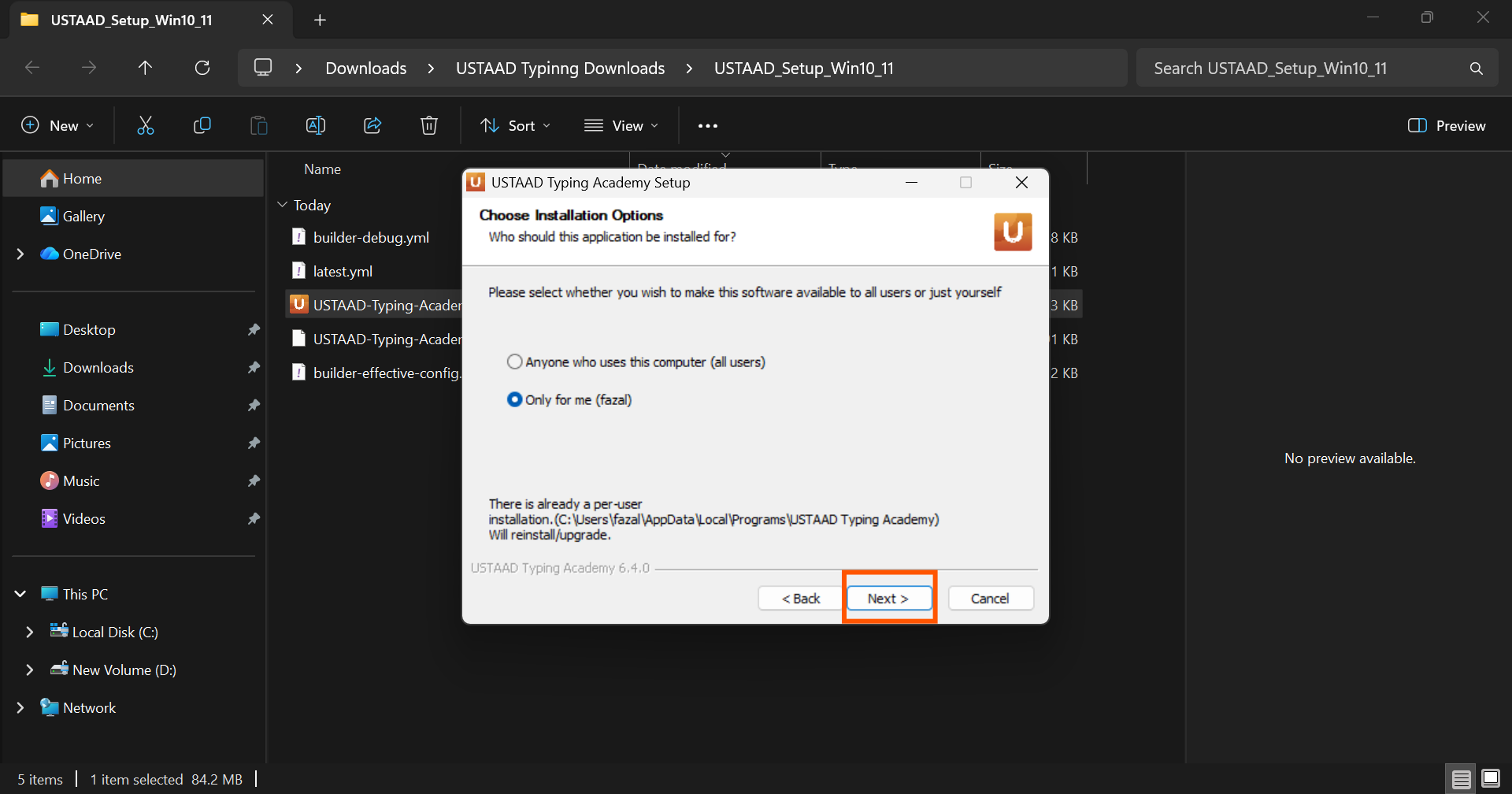
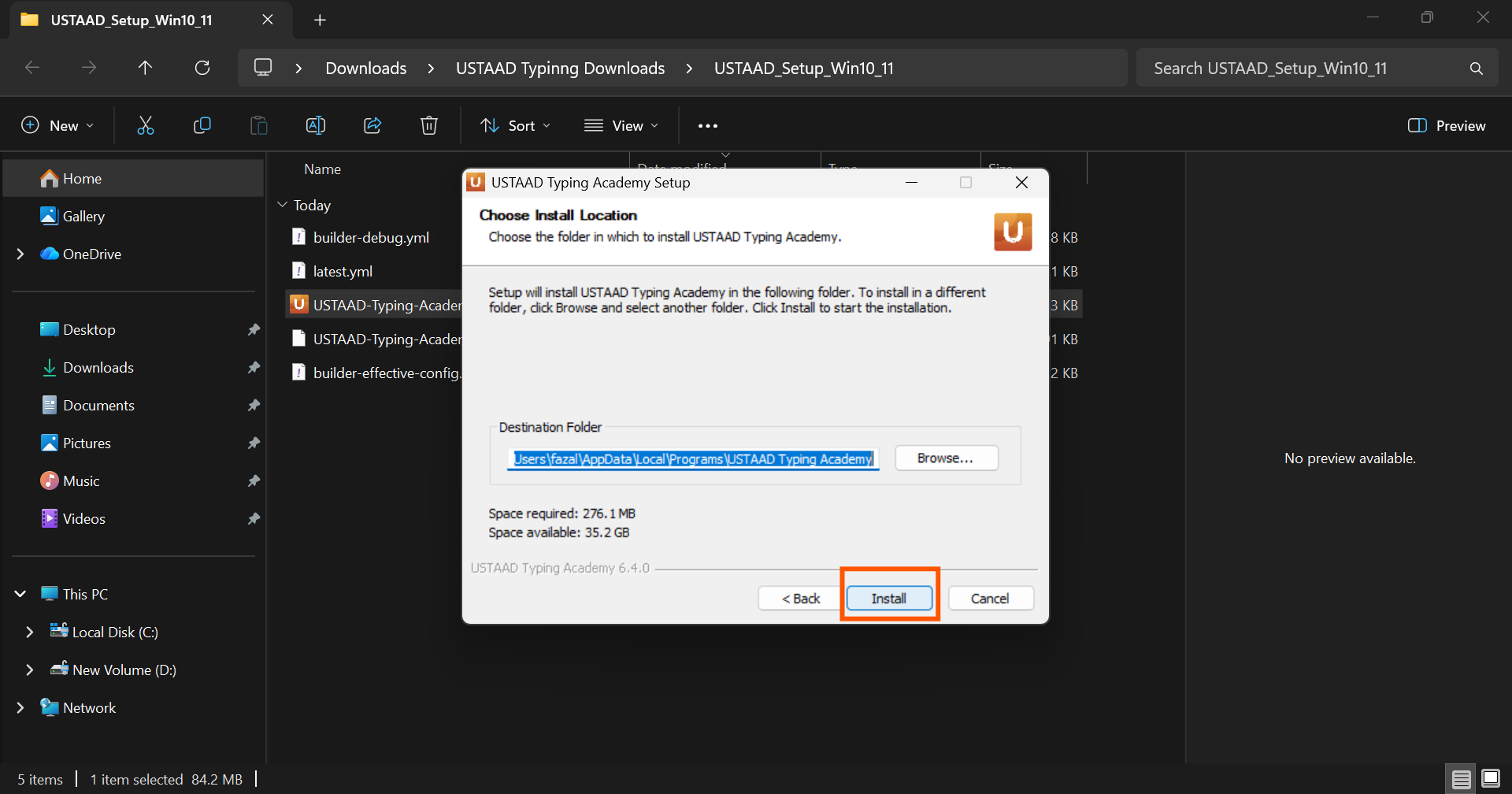
The installation is straightforward. You do not need to change any settings during setup — just click through the installer and USTAAD Typing Academy will be installed on your system.
Step 6 — Launch USTAAD Typing Academy
Once installation is complete, you can:
- Find USTAAD Typing Academy in your Start Menu and click to open it, or
- Look for the desktop shortcut that was created during installation and double-click it
Alternative — Download from Microsoft Store (Windows 10/11 Only)
If you are on Windows 10 or Windows 11, you can also download USTAAD Typing Academy directly from the Microsoft Store. This is the simplest installation method — no ZIP file, no manual extraction needed.
To install from the Microsoft Store:
👉 Download USTAAD Typing Academy from Microsoft Store
- Open the Microsoft Store on your Windows PC
- Search for USTAAD Typing Academy
- Click Install
- Once installed, launch it from the Start Menu or Microsoft Store
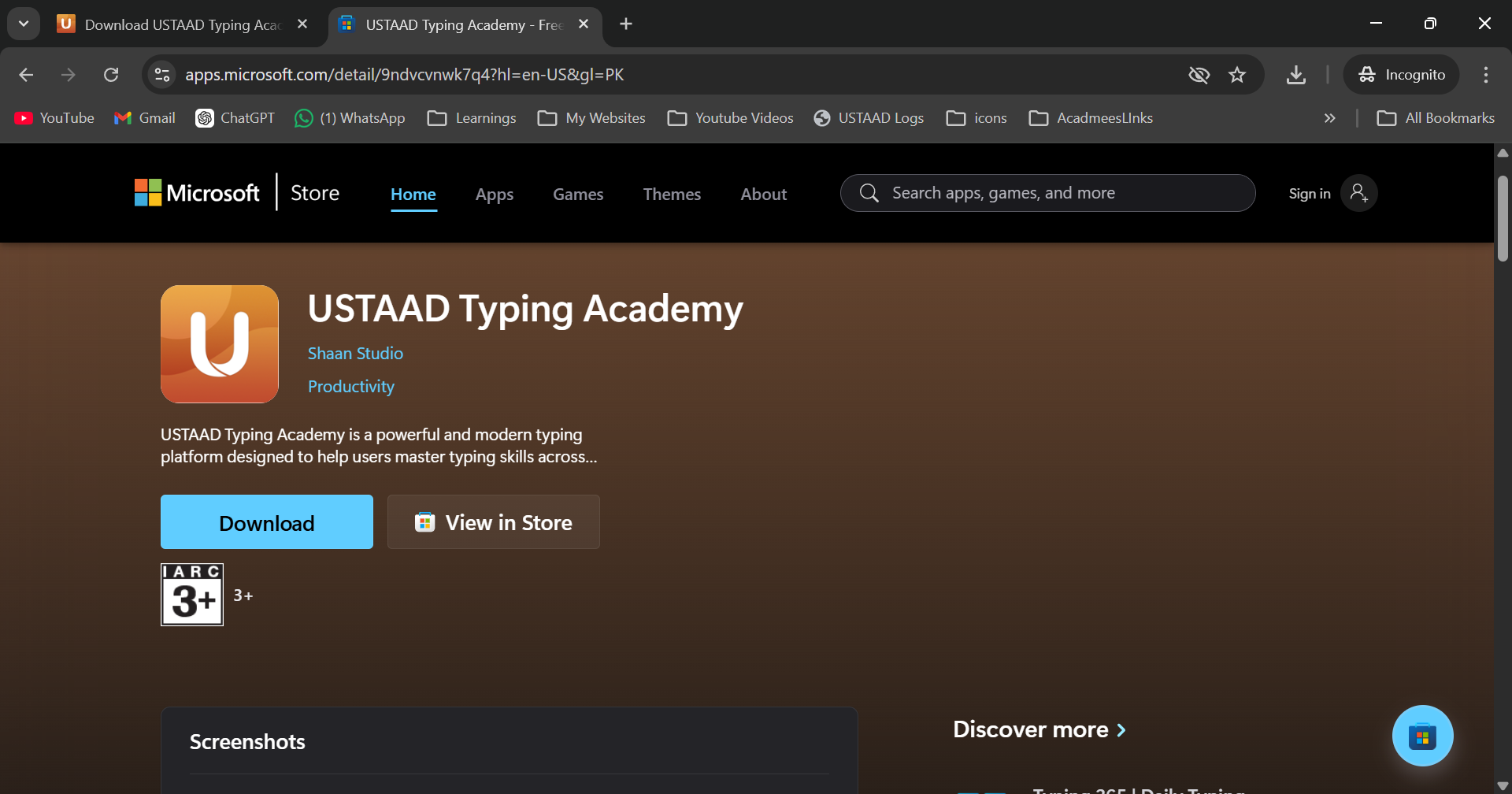
The Microsoft Store version automatically handles updates, so you will always have the latest version without manually downloading a new installer.
System Requirements
| Requirement | Details |
|---|---|
| Operating System | Windows 7, 8, 10, or 11 |
| Internet Connection | Required only for first-time course download |
| Storage | Depends on the number of typing courses downloaded |
| Mac / Linux | Not yet supported — coming in a future release |
What Happens After Installation?
Once USTAAD Typing Academy is installed and launched for the first time, it will guide you through two quick setup steps:
- Create your user account — Add your name to set up a personal profile
- Select and download your typing course — Choose the language and layout you want to practice
These steps only take a minute and you will be ready to start typing.
Troubleshooting
The installer is not opening
Make sure you fully extracted the ZIP file before running the .exe. Running the installer directly from inside the ZIP without extracting can cause it to fail.
Windows shows a security warning Windows may show a SmartScreen warning for new applications. Click More info and then Run anyway to proceed with the installation. USTAAD Typing Academy is safe to install.
I installed the Windows 7/8 version on Windows 10/11 by mistake Uninstall it from Control Panel → Programs → Uninstall a program, then visit ustaadtyping.com/download and download the correct Windows 10/11 version.
The app is not launching after installation Try restarting your computer and opening the app again. If the issue continues, visit ustaadtyping.com for support.