Downloading and Managing Typing Courses
USTAAD Typing Academy allows you to expand your learning options by downloading additional language courses. This guide covers the complete process of acquiring, managing, and maintaining your typing course library.
Why Download Additional Courses?
While USTAAD comes with basic courses pre-installed, downloading additional languages gives you:
- Multilingual proficiency — Learn typing in multiple languages
- Cultural relevance — Access courses in your native or regional languages
- Professional requirements — Meet language-specific typing needs
- Offline accessibility — Download once, use anytime without internet
Internet Requirements for Downloads
Before downloading courses:
- Stable internet connection required for initial download
- Minimum speed: 1 Mbps recommended, 512 Kbps minimum
- Data usage: Approximately 50-200 MB per language course
- No ongoing internet needed after download completion
Course sizes vary by language complexity. English courses are typically smaller (50-100 KB), while script-heavy languages like Arabic or Devanagari may be larger (150-200 KB).
How to Download Courses
Step-by-Step Download Process
Step 1: Open USTAAD and continue from your account
- Launch USTAAD Typing Academy
- Select your user account
- Click Continue
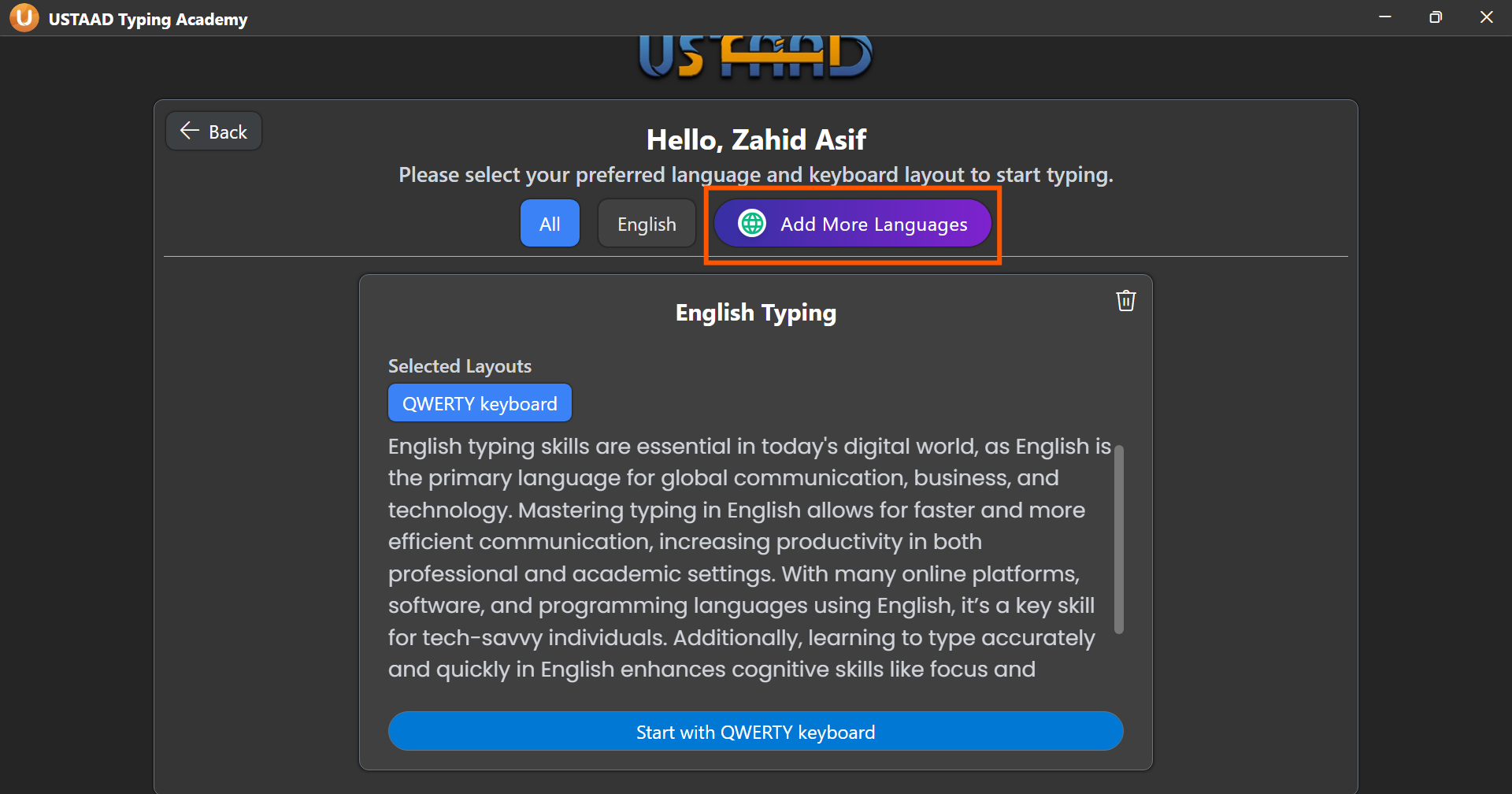
This opens the Language Selection page. If you are using USTAAD for the first time, the default course card shown will be English QWERTY.
Step 2: Click the Add More Languages button
On the Language Selection page, look in the top-right area near the language tabs. Click Add More Languages to open the download section.
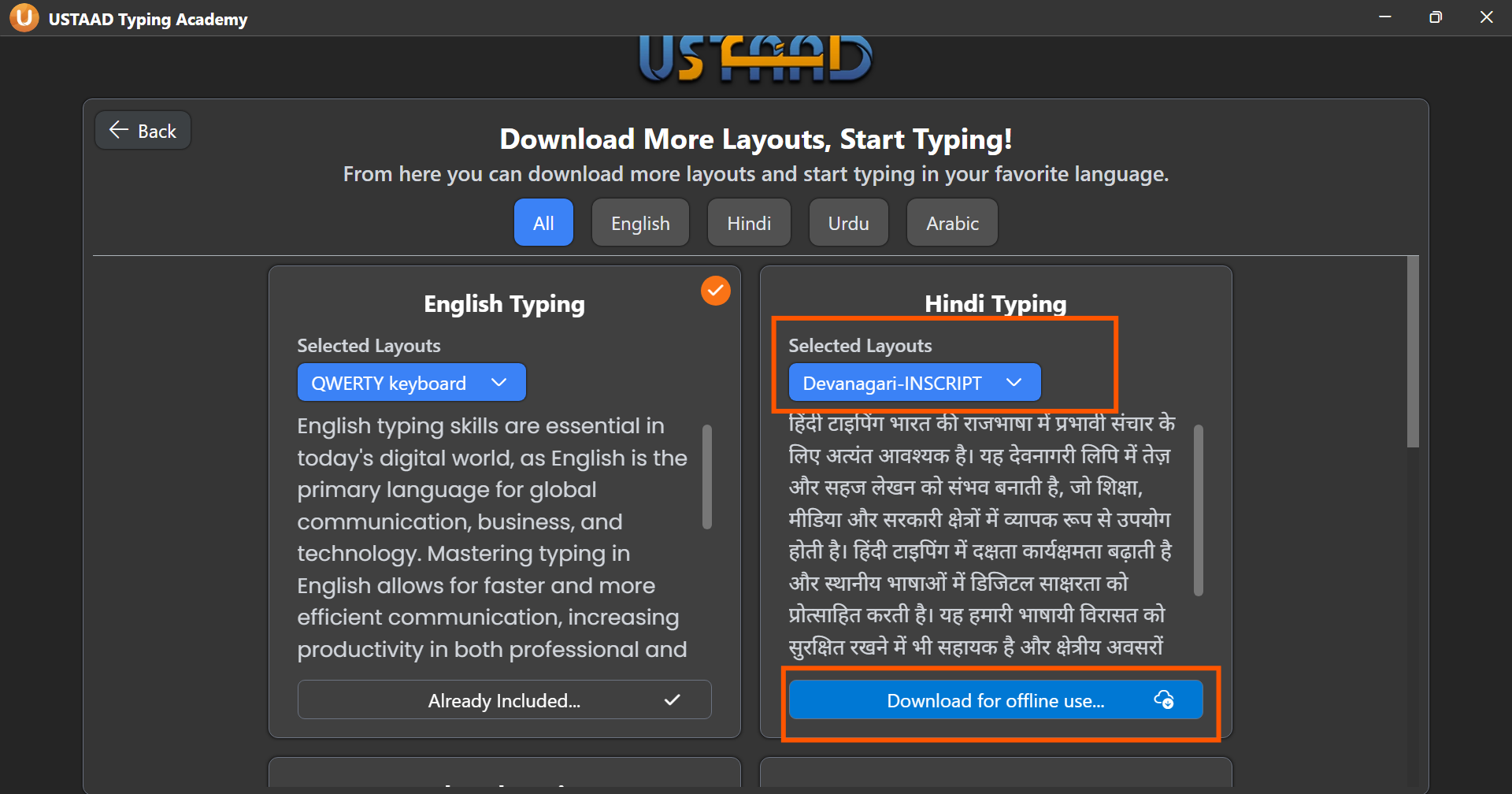
Step 3: Choose your language and layout
In the download section, USTAAD shows all available language typing courses. Find the language you want, then open the layout dropdown on that course card.
Choose the specific layout for that language, then click the download option.
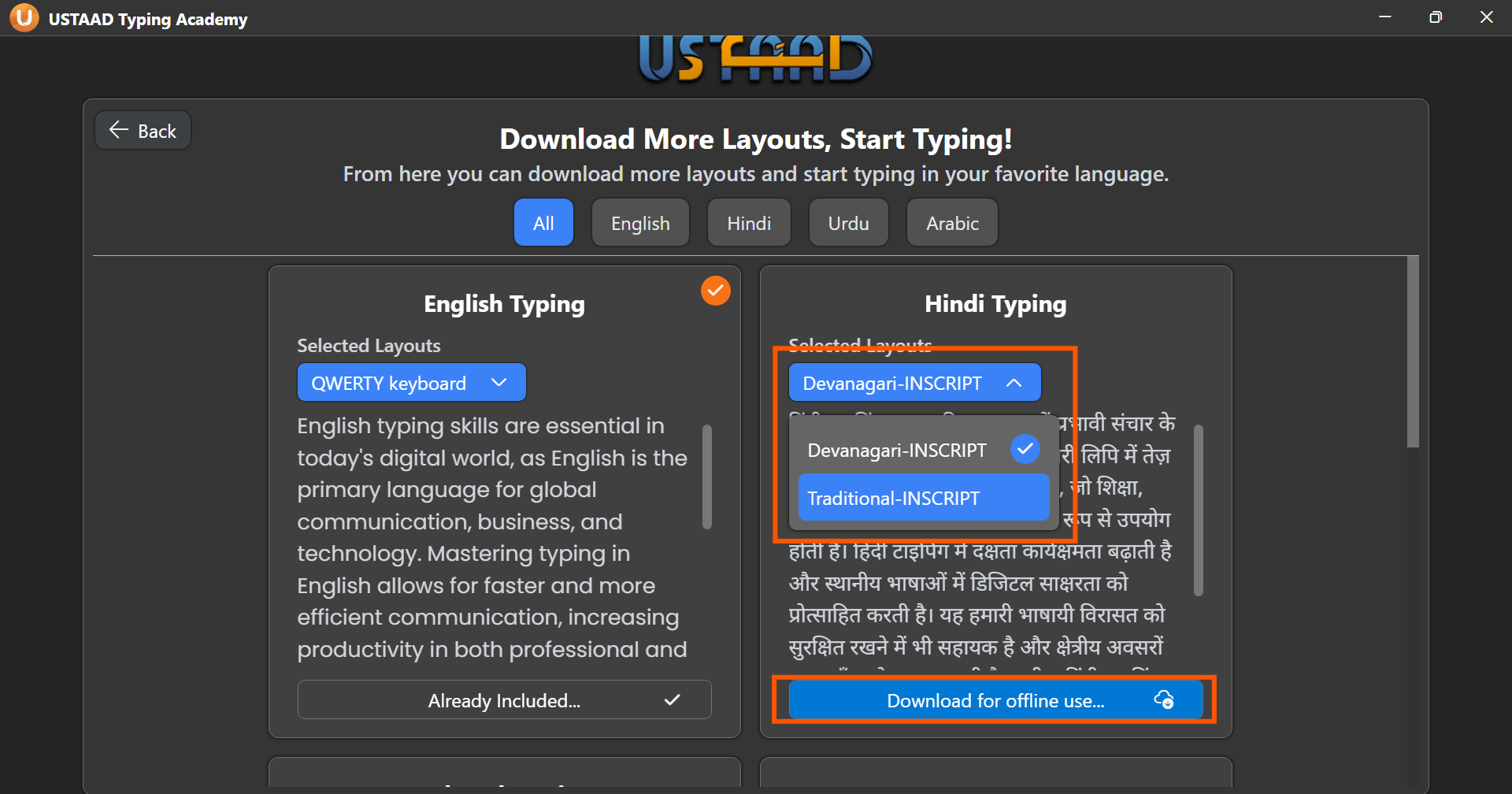
Step 4: Confirm the layout and download
After choosing a layout, click Download for offline use. USTAAD will open a layout confirmation window so you can verify that the selected keyboard layout is correct before downloading.
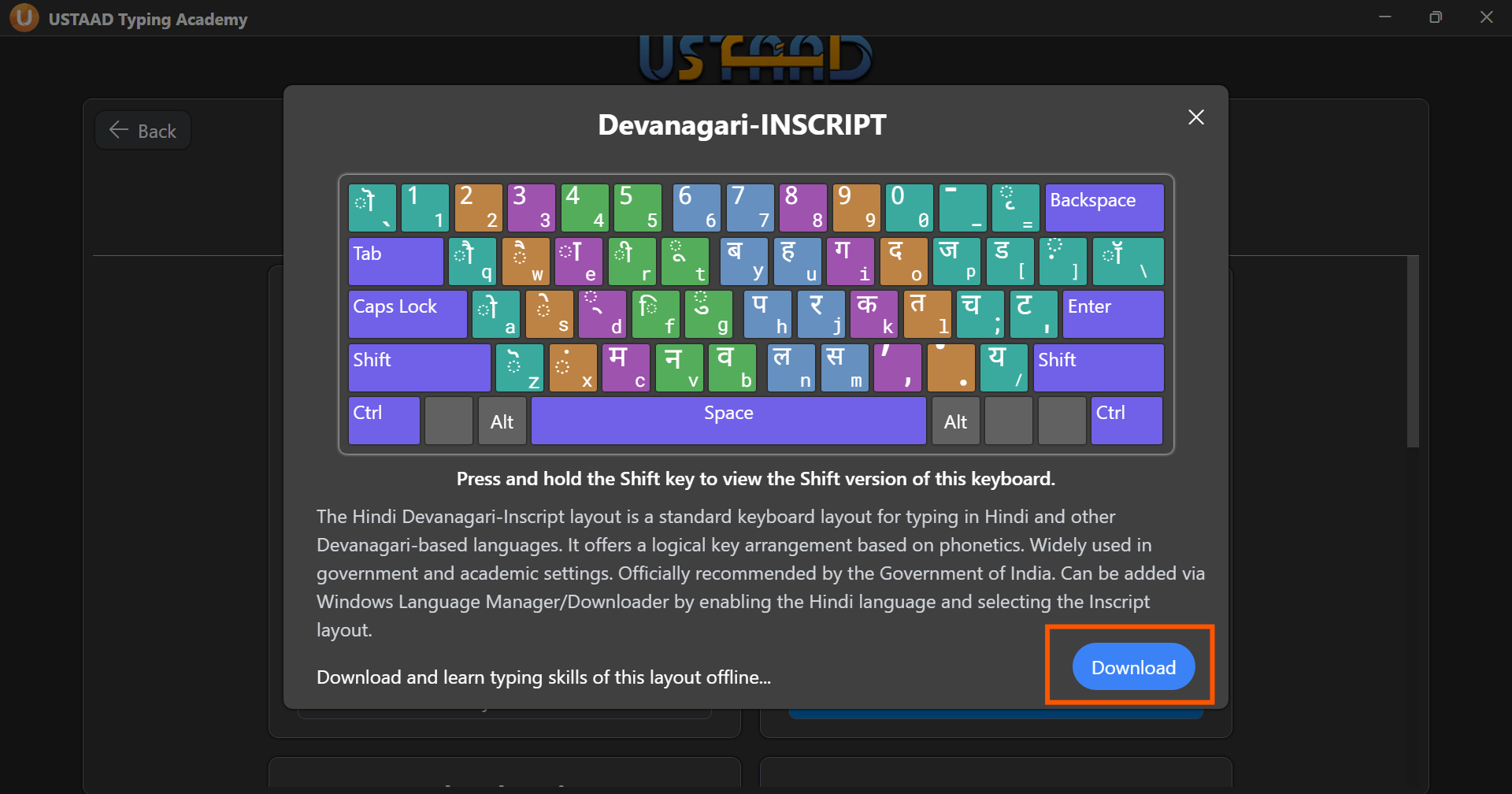
Note: Keep your computer on and keep USTAAD open on screen while the download completes. The download usually takes about 10–15 seconds.
Once the download finishes, USTAAD returns you to the Language Selection page. Your new typing course is ready to use immediately.
Typing courses are small files, generally around 100–200 KB each. USTAAD downloads them safely and stores them in a secure local location on your device.
If you delete a language course later, your course results and progress are not removed from your account. When you download the same course again, your results remain consistent.
Offline Usage After Download
Once downloaded, courses work completely offline:
- No internet required for daily practice sessions
- All lessons and tests available without connectivity
- Progress tracking works offline
- Certificates generated locally
When you regain internet access, USTAAD can optionally sync your offline progress with any cloud backups if enabled.
Troubleshooting Download Issues
Common Problems and Solutions
Download fails midway
- Check internet stability
- Resume download from pause menu
- Clear temporary files and retry
Insufficient storage space
- Free up space by deleting unused courses
- Check available disk space requirements
- Consider external storage for large libraries
Course won't install
- Verify system requirements
- Run as administrator (Windows) or with sudo (Linux/Mac)
- Check antivirus exclusions for USTAAD folder
Update download stuck
- Cancel and restart update
- Check for conflicting processes
- Contact support if persistent
Best Practices for Course Management
- Download during off-peak hours to avoid network congestion
- Maintain 2-3x download size free space for installations
- Regularly check for updates to access latest content
- Keep backup courses for critical languages
- Monitor storage usage to prevent space issues
Advanced Management Features
Bulk Operations
- Download multiple courses simultaneously
- Batch delete unused courses
- Bulk update all installed courses
Network Optimization
- Download scheduling for off-peak hours
- Bandwidth limiting to avoid network saturation
- Resume capability for interrupted downloads
Storage Optimization
- Compression options for storage efficiency
- Cloud backup integration for progress preservation
- External drive support for large course libraries
By effectively managing your downloaded courses, you can maintain an optimal learning environment while maximizing your device's storage efficiency.