Managing Multiple User Accounts
USTAAD Typing Academy supports multiple user accounts on a single device. This means different family members, students, or learners can each have their own completely separate profile — with their own progress, results, settings, and certificates — all on the same installation.
Why Use Multiple Accounts?
Multiple accounts are useful in many situations:
- Family use — Each family member can have their own account and track their own progress independently.
- Different learning goals — One person may be learning Urdu typing while another is focused on English. Separate accounts keep everything organized.
- Shared devices — In a classroom, lab, or shared computer, each student can have their own account without interfering with others.
- Different skill levels — Beginners and advanced users can each work through lessons at their own pace without affecting each other's results.
How Accounts Are Isolated
Each account in USTAAD is completely independent. Every account has its own:
- Typing progress and lesson history
- Test results and performance statistics
- Personal settings and preferences
- Certificates earned
This data is stored in a separate file for each account on your device. One account's data never mixes with or affects another account's data.
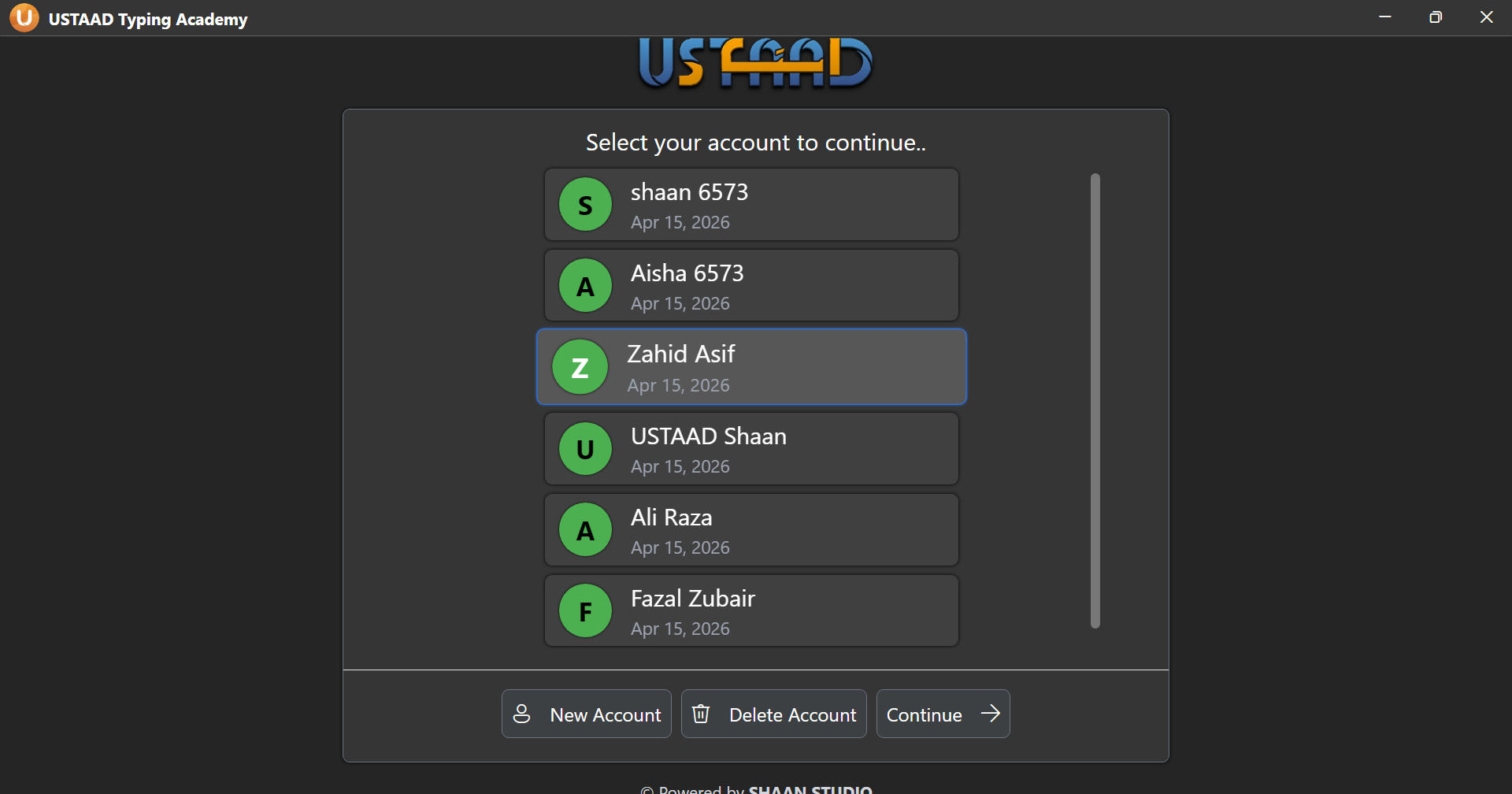
Adding a New Account
To add a new user account:
- Open USTAAD Typing Academy.
- On the User Accounts page, click Create New Account.
- Enter the new account's name (required) and email (optional).
- Click Continue to create the account.
The new account will appear on the User Accounts page and is ready to use immediately.
It is recommended to create a maximum of 5 user accounts on a single device. Staying within this limit ensures the software runs smoothly and all accounts perform well.
Switching Between Accounts
To switch to a different account:
- Open USTAAD Typing Academy.
- On the User Accounts page, select the account you want to use.
- Click Continue.
You will be taken directly to the Language Selection page under that account. All progress, results, and settings shown will belong to the selected account only.
Each time you open USTAAD, you can choose which account to continue with. There is no password or login required — just select your name and continue.
Deleting an Account
To delete a user account:
- On the User Accounts page, select the account you want to remove.
- Click Delete Account.
- Confirm the deletion when prompted.
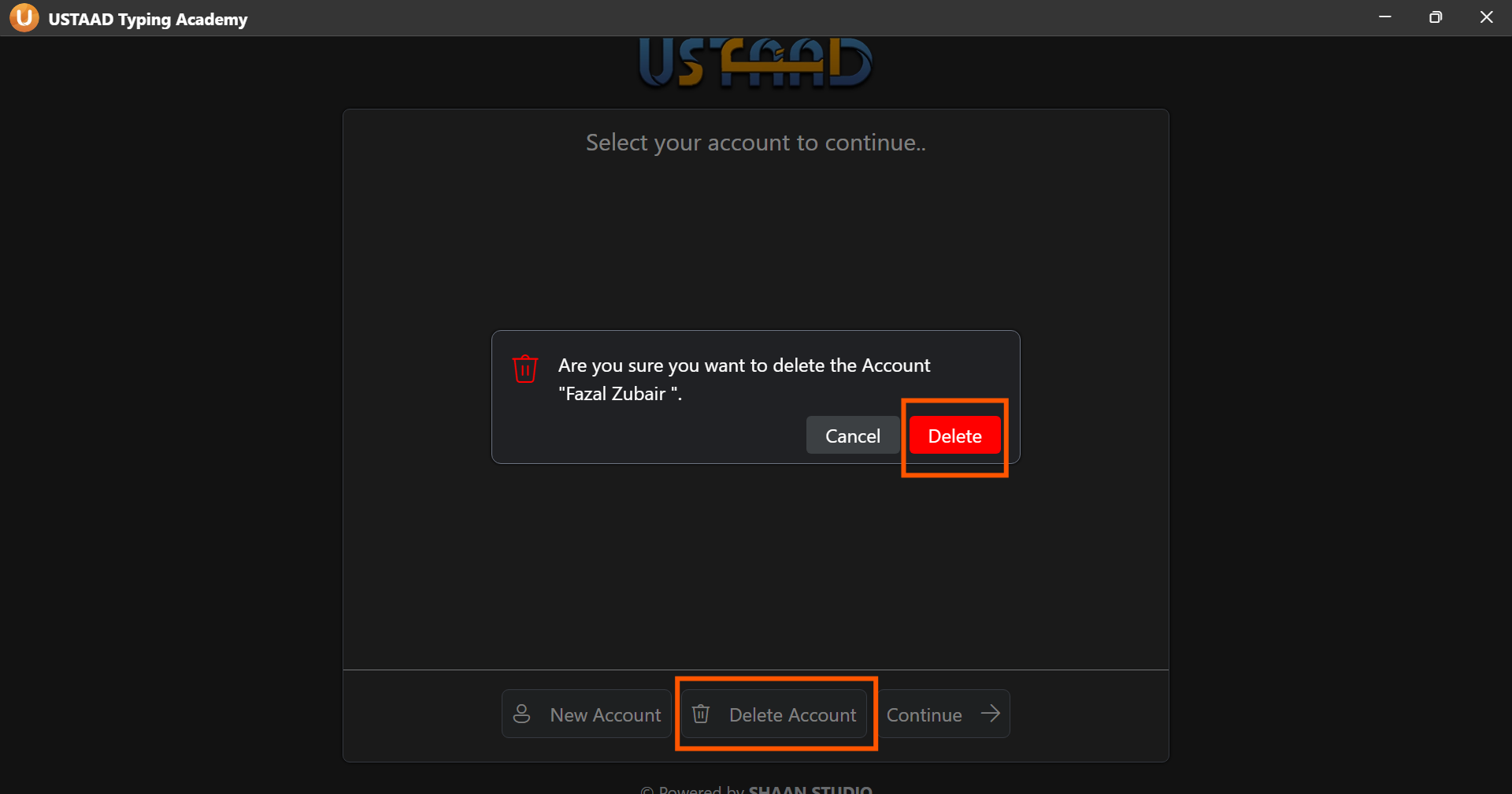
Deleting an account will permanently remove all data associated with it — including all typing progress, test results, lesson history, settings, and certificates. This cannot be undone. Make sure you have selected the correct account before confirming.
Best Practices for Managing Accounts
- Use clear, recognizable names when creating accounts so it is easy to identify each person on the accounts page.
- Stay within the 5-account limit to ensure the best performance.
- Do not delete an account unless you are certain the data is no longer needed, as recovery is not possible.
- Each person should use only their own account to keep results and progress accurate and meaningful.
Common Issues
I can't find an account I created earlier. If you are using the web version, accounts are stored in browser local storage. Clearing your browser cache or switching to a different browser will remove all saved accounts. If you are on the desktop version, accounts are stored in local files on your device and are not affected by browser changes.
The software feels slow with multiple accounts. This can happen when there are more than 5 accounts on a single device. It is recommended to remove any unused accounts to restore optimal performance.
Can two accounts share the same name? Yes, USTAAD does not prevent duplicate names. However, using unique names for each account makes it much easier to identify the correct profile on the accounts page.
Can I transfer an account to another device? Account transfer between devices is not currently supported. Each device maintains its own separate set of accounts and data.